8 AI Presentation Tools That Turn Notes, Files and Ideas Into Slides



AI presentation tools sound impressive until you actually try to build a usable deck with them. Some are great at turning a prompt into slides, but weak when you need editing control. Some make beautiful designs, but struggle with business structure. Some are better as add-ons than full presentation makers.
So I looked at these tools from a practical angle: how they help during the real presentation workflow. That means starting with rough notes, generating a first draft, editing the slide text, improving the design, exporting the file, and deciding whether the final deck is actually usable.
Quick Comparison:
| Tool | Best Workflow Use | Starting Paid Price |
| Plus AI | Google Slides and PowerPoint decks | Starts at $10/month annually |
| Canva AI Presentations | Visual and creative decks | Around $15/month |
| Visme | Branded reports and visual decks | Paid plans vary |
| Storydoc | Interactive sales decks | Around $36/month annually |
| Slidesgo AI | Quick template-based presentations | Premium plans vary |
| PopAI | Turning files into presentations | Around $8.33/month annually |
| Prezent AI | Enterprise presentation workflows | Custom pricing |
| PowerPoint with Copilot | Microsoft 365 presentation work | Depends on Microsoft 365 plan |
1. Plus AI

Plus AI felt useful because it did not ask me to leave the tools most people already use. I could work inside Google Slides or PowerPoint, start with a topic or outline, and generate a first draft without moving everything into a separate presentation platform. That alone makes it more practical than many AI deck builders.
The first draft still needed editing, but it gave me structure fast. It worked better when I gave it a clear prompt with the audience, slide count, purpose, and tone. For example, asking for a “10-slide client update deck for a marketing team” produced a cleaner result than simply typing “marketing presentation.”
My workflow with the tool:
● Input: I started with a short topic, rough notes, or an outline.
● First draft: Plus AI created slide titles, sections, and basic content.
● Editing: I could rewrite weak slides and shorten long sections inside the same slide editor.
● Design quality: The design felt clean and business-friendly, but not very creative.
● Final output: The biggest advantage was that the deck stayed editable in Google Slides or PowerPoint.
What felt good:
● It fits naturally into an existing slide workflow.
● It is useful for business decks, reports, and internal updates.
● The rewrite feature helps clean up boring or wordy slides.
What felt weak:
● The design output is not as visual as Canva or Visme.
● The first draft still needs human editing.
● It works better for structured decks than storytelling-heavy presentations.
Pricing:
Plus AI is free to try. Paid plans start at $10 per month when billed annually, with higher plans for teams, branding, and more advanced usage.
Verdict:
Plus AI is worth using if your presentation workflow already depends on Google Slides or PowerPoint. It is not the most visually exciting AI presentation tool, but it solves a real problem: getting from rough notes to an editable deck without changing platforms.
2. Canva AI Presentations
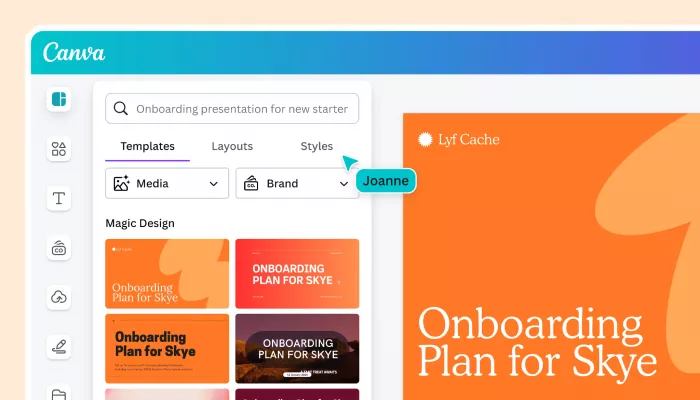
Canva AI Presentations felt more creative than corporate. It is the kind of tool that makes sense when the deck needs to look visual, colorful, and modern. I found it especially useful for marketing slides, social media reports, classroom presentations, event decks, creator portfolios, and small business pitches.
The AI part helps with starting the deck, but Canva’s real strength begins after the draft is created. You can change almost everything quickly: fonts, images, colors, icons, layouts, animations, background styles, charts, and brand assets. That editing freedom makes it easier to turn a basic AI draft into something that looks publishable.
My workflow with the tool:
● Input: I started with a prompt or selected a presentation template.
● First draft: Canva created a visual base that was easy to customize.
● Editing: The drag-and-drop editor made it simple to adjust layouts and visuals.
● Design quality: The slides looked more creative and media-friendly than most AI-first deck tools.
● Final output: I could present, share, download, or repurpose the same content into other formats.
What felt good:
● The template library is huge and beginner-friendly.
● It is easy to make slides look polished without design skills.
● It works well when visuals matter more than strict corporate formatting.
What felt weak:
● It can feel less structured for serious business reports.
● Too many templates can make the workflow distracting.
● Some of the best assets and brand tools need Canva Pro.
Pricing:
Canva has a free plan. Canva Pro pricing varies by country, but individual pricing is commonly around $15 per month, with team and enterprise plans available.
Verdict:
Canva is the easiest recommendation for visual presentations. It is not the best tool for heavy business formatting, but if your deck needs to look attractive quickly, it gives you more creative control than most AI presentation makers.
3. Visme

Visme felt like a stronger option when the presentation needed charts, reports, infographics, and branded visual content. It is not just a slide generator. It is more like a visual communication platform where presentations sit alongside reports, documents, social graphics, charts, and interactive content.
The workflow is slightly heavier than Canva, but it gives more structure for business visuals. I liked it most when the deck needed to explain data or package information in a more polished way. It is a good fit for marketing reports, business dashboards, educational material, company updates, and client-facing visual decks.
My workflow with the tool:
● Input: I started with a template, visual idea, or AI-assisted prompt.
● First draft: Visme helped create a structured visual base rather than a plain slide deck.
● Editing: I could add charts, icons, data widgets, images, and branded elements.
● Design quality: The result looked more professional when the deck involved reports or data.
● Final output: The deck could be shared online or exported depending on the selected plan.
What felt good:
● It is strong for charts, infographics, and visual reports.
● Brand controls make it useful for businesses.
● It works beyond presentations, which helps content teams reuse designs.
What felt weak:
● It takes more time to learn than simple AI slide generators.
● Quick decks may feel easier in Slidesgo or Plus AI.
● Some export and premium asset features depend on paid plans.
Pricing:
Visme has a free plan. Paid pricing varies by plan type, region, and team needs, so it is best to check the current pricing page before choosing a plan.
Verdict:
Visme is worth considering if your presentations need more than text and images. It works best for branded reports, data-driven decks, and visual business content where charts and design consistency matter.
4. Storydoc
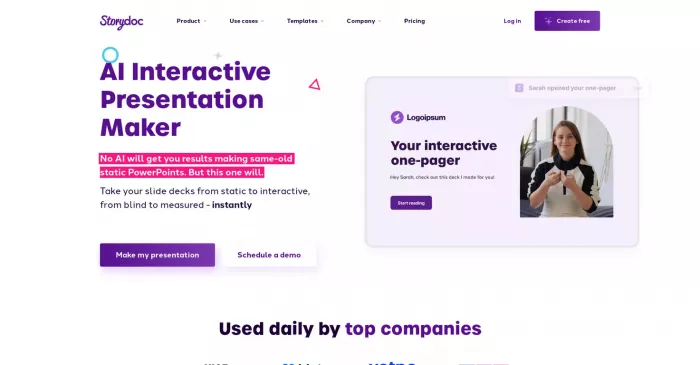
Storydoc felt different because it does not behave like a normal slide tool. Instead of creating a traditional deck, it helps build interactive business presentations that feel closer to a web page. This makes it more useful for sales decks, proposals, case studies, client presentations, investor updates, and lead-generation content.
The experience makes the most sense when the deck will be shared with someone, not just presented live in a room. I liked the idea of turning a static presentation into something trackable and interactive. It is less useful if you simply need a basic PowerPoint file, but much more interesting when a deck needs to persuade, convert, or explain a business offer.
My workflow with the tool:
● Input: I started with a business use case such as a proposal, pitch, or sales story.
● First draft: Storydoc helped shape the content into an interactive presentation format.
● Editing: I could add sections, visuals, embedded content, and call-to-action elements.
● Design quality: The output felt modern and sales-focused rather than traditional.
● Final output: The strongest use was sharing the presentation as an interactive link.
What felt good:
● It is better for sales and proposal decks than standard slide tools.
● Interactive pages feel more engaging than static PDFs.
● Analytics and personalization make it useful for client-facing work.
What felt weak:
● It is not ideal for simple classroom or internal meeting slides.
● It may feel expensive for casual users.
● People who need regular PowerPoint files may find the format less convenient.
Pricing:
Storydoc has a free option for getting started. Paid plans are commonly listed from around $36 per month when billed annually, with team plans available for larger business use.
Verdict:
Storydoc is best when the presentation is part of a sales or client journey. It is not the tool I would pick for a basic slide deck, but it is one of the more interesting options for interactive proposals and pitch-style business documents.
5. Slidesgo AI
Slidesgo AI felt like a fast starting-point tool. It is not trying to replace a full presentation workflow, but it is useful when you need a quick deck structure with a good-looking template. The process is simple: enter a topic, choose a style, and let the tool create a visual base.
This worked best for education, student projects, simple business presentations, quick explainers, and topic-based decks. The output still needed manual improvement, especially if the topic required depth, examples, or original analysis. But for getting past the blank-slide stage, it was quick and easy.
My workflow with the tool:
● Input: I entered a topic or presentation idea.
● First draft: Slidesgo AI generated a basic deck with a visual template.
● Editing: I adjusted the text, images, slide order, and examples manually.
● Design quality: The design looked polished enough for quick use, but it still felt template-led.
● Final output: The deck was better as a starting point than a final professional presentation.
What felt good:
● It is quick and beginner-friendly.
● The templates are useful for school, education, and simple explainers.
● It gives you a visual direction fast.
What felt weak:
● The content can feel generic without manual editing.
● It is not ideal for high-stakes business decks.
● Brand control is limited compared with enterprise tools.
Pricing:
Slidesgo offers free access to templates and its AI presentation maker, though usage limits and premium template access may apply. Paid or premium access depends on current Slidesgo plan options.
Verdict:
Slidesgo AI is a good choice when speed matters more than deep customization. I would use it for quick drafts, classroom slides, or simple topic presentations, but not as the final stop for serious business decks.
6. PopAI
PopAI felt useful when the presentation started from existing material. Instead of only asking for a prompt, it can work with PDFs, Word files, PPTX files, web pages, and general text. That makes it practical for students, researchers, educators, and professionals who often need to turn source material into a deck.
The strongest part of the workflow was content extraction. If you already have a document, article, report, or study material, PopAI can help summarize and reshape it into slide format. The design still needs polishing, but it can save time in the outlining and content breakdown stage.
My workflow with the tool:
● Input: I used a prompt, PDF, document, or web content as the starting point.
● First draft: PopAI extracted the main points and created a slide structure.
● Editing: I needed to clean up wording, add examples, and improve slide flow.
● Design quality: The design was usable, but not as refined as Canva or Visme.
● Final output: It worked best as a document-to-presentation shortcut.
What felt good:
● It can turn existing files into slide drafts.
● It is useful for study, research, and document-heavy work.
● The workflow is faster than manually summarizing long material.
What felt weak:
● The final slides may need design improvement.
● It feels broader than a dedicated presentation tool.
● Professional business decks may need more polish.
Pricing:
PopAI has a free option with limits. Paid plans are commonly listed from around $8.33 per month when billed annually, with higher plans for heavier use.
Verdict:
PopAI is worth trying if your main problem is turning documents into slides. It is not the strongest design tool on this list, but it is helpful when the hard part is extracting structure from long material.
7. Prezent AI
Prezent AI felt much more enterprise-focused than casual presentation tools. It is built for companies that create a lot of presentations and need brand consistency, audience-specific messaging, industry language, and standardized business communication. This is not a lightweight tool for one-off student decks.
The workflow is more serious and structured. It makes sense for large teams, regulated industries, life sciences, consulting-style communication, leadership decks, and enterprise sales presentations. The focus is not just “make slides fast.” It is more about making presentations consistent, compliant, and useful across a whole organization.
My workflow with the tool:
● Input: I started from a business objective, audience type, or presentation need.
● First draft: The tool helped shape a more structured business narrative.
● Editing: The workflow leaned toward message clarity, brand fit, and communication quality.
● Design quality: The output felt more corporate and brand-governed than creative.
● Final output: It made the most sense for repeatable enterprise presentation work.
What felt good:
● It is built for serious business communication.
● Brand consistency is a major strength.
● It fits teams that produce many decks, not just occasional slides.
What felt weak:
● It is too heavy for casual users.
● Pricing is not as simple as beginner tools.
● Smaller teams may not need this level of governance.
Pricing:
Prezent AI uses enterprise-focused pricing with trial, demo, or custom plan options depending on the organization. Some public comparison material lists professional pricing around $33.25 per user/month annually, while enterprise plans are custom.
Verdict:
Prezent AI is not for everyone, but it solves a real enterprise problem. If your team creates high-stakes presentations at scale and needs strict brand control, it is far more relevant than a simple AI slide generator.
8. Microsoft PowerPoint with Copilot
PowerPoint with Copilot felt like the safest option for people already inside Microsoft 365. It does not feel as trendy as newer AI presentation tools, but that is exactly why it matters. Most companies still use PowerPoint, and many final decks still need to be shared as PPTX files.
Copilot can help create slides from prompts or documents, summarize material, rewrite slide text, and improve presentation structure. The results still need editing, but the advantage is workflow fit. If your company already uses Microsoft 365, staying inside PowerPoint may save more time than moving to another AI deck tool.
My workflow with the tool:
● Input: I started with a prompt, outline, report, or document.
● First draft: Copilot helped create slide sections and talking points.
● Editing: I could rewrite text, summarize information, and continue editing in PowerPoint.
● Design quality: The design depended heavily on existing PowerPoint themes and templates.
● Final output: The deck stayed in the standard PowerPoint workflow.
What felt good:
● It works inside a tool many professionals already use.
● It is useful for turning documents into presentation drafts.
● It keeps the final deck in an editable PowerPoint format.
What felt weak:
● Copilot access depends on Microsoft 365 licensing.
● The output still needs careful review and formatting.
● It is not as visually creative as Canva or Visme.
Pricing:
Microsoft 365 Copilot pricing depends on the Microsoft 365 plan and business setup. Some business bundles are currently listed with promotional pricing, but access can vary by plan, market, and eligibility.
Verdict:
PowerPoint with Copilot is best for people who already live in Microsoft 365. It may not be the flashiest AI presentation maker, but it is one of the most practical choices for corporate users who need editable PowerPoint decks.
Final Verdict: Which AI Presentation Tool Should You Choose?
The best AI presentation tool depends on where your workflow usually gets stuck. If you struggle with the blank slide, Plus AI, Slidesgo AI, PopAI, and PowerPoint with Copilot can help you create a first draft faster. If your main problem is visual polish, Canva and Visme are stronger choices. For interactive sales decks and proposals, Storydoc stands out, while Prezent AI is better suited for large organizations that need brand control and enterprise-level presentation workflows.
For most users, Canva is the easiest visual option, Plus AI is the most practical choice for Google Slides and PowerPoint users, and PopAI is useful when you need to turn documents into decks. Visme works better for branded reports and data-heavy visuals, while PowerPoint with Copilot makes the most sense for teams already using Microsoft 365.
The smartest approach is to choose by workflow, not hype. Start with the kind of presentation you make most often, then pick the tool that removes the slowest part of that process.


Comments