How to Upscale and Clean Up Photos with AI Without Losing Quality

Christine Davis
There is a sentence in almost every AI upscaler's marketing copy that is quietly false: "enlarge your photos without losing quality."
You cannot enlarge a photo without losing quality. The quality, meaning the actual recorded light, was never there to begin with. A 640×480 scan contains roughly 307,000 real measurements of the world. When a tool hands you back a 2560×1920 file, it has produced 4.9 million pixels. The other 4.6 million were invented.
That is not a reason to avoid AI upscaling. It is the reason to understand it.
The difference between a rescued photograph and a plastic-looking fake is almost entirely a matter of which invented pixels you accept, in what order you apply your tools, and when you stop.
This guide covers what AI actually does to your pixels, seven tools worth knowing in 2026 with current pricing, a step-by-step walkthrough you can follow today for free, and a quality-control checklist so you can tell objectively whether you improved a photo or damaged it.
Quick comparison table
| Tool | Type | Max upscale | Runs locally? | Free tier | Entry price (2026) | Best for |
| Topaz Gigapixel | Desktop | 6× | Yes | Trial only | $29/mo · $149/yr | Print, archival, maximum fidelity |
| Adobe LrC + Photoshop | Desktop | 2× (Super Res) | Yes | No | $19.99/mo | RAW files, full editing pipeline |
| Upscayl | Desktop | 16× (chained) | Yes | Fully free | $0 | Privacy, batches, zero budget |
| Magnific AI | Web | 16× | No | No | Credit-based (verify) | AI art, renders, creative reimagining |
| Let's Enhance | Web | 16× | No | 10 credits | $9/mo (annual) | E-commerce, batch, non-technical users |
| Krea AI | Web | 22K | No | 100 units/day | ~$9/mo | Creators already generating images |
| Remini | Mobile/Web | ~4× | No | Ads + watermark | ~$6.99/week | Blurry faces, old prints, phone-only |
What "without losing quality" actually means
Once you accept that upscaling invents pixels, "quality" splits into two competing goals that pull in opposite directions.
Fidelity is faithfulness to the original scene. A high-fidelity upscale enlarges what is genuinely present and refuses to guess beyond it. Results look softer, but nothing appears that wasn't there. This is what you need for photojournalism, evidence, historical archives, medical or scientific imagery, and any photo of a real person's face where accuracy matters.
Plausibility is how convincing the output looks on its own terms. A high-plausibility upscale confidently invents skin pores, fabric weave, brick texture and eyelashes. It looks spectacular at 100% zoom. It is also partly fiction. This is what you want for AI art, 3D renders, background elements, and marketing imagery where nobody is going to cross-examine the bricks.
Almost every complaint about AI upscaling is a fidelity problem caused by using a plausibility tool. "It made my grandmother look like a different person." "The text turned into gibberish." "The skin looks like wax."
The tools are not broken. They are answering a question you didn't mean to ask.
Practical rule: decide which one you need before you open any software, then pick the model accordingly. Most tools now label this for you. Gigapixel offers "High Fidelity" against "Redefine," Let's Enhance offers "Gentle" against "Prime," Upscayl offers "General Photo" against “UltraSharp.”
How AI actually improves photos
Seven distinct operations sit behind the word "enhance." Understanding them separately is what lets you diagnose a bad result instead of just trying another tool.
1. Super-resolution (detail reconstruction)
Classic enlargement (bicubic, Lanczos) averages neighbouring pixels, spreading existing information thinner. That is why it looks blurry. A super-resolution model has instead been trained on millions of image pairs, learning statistically what high-resolution detail typically corresponds to a given low-resolution pattern. Given a soft edge, it reconstructs the sharp edge that most likely produced it.
Where it fails: anything statistically unusual. Rare textures, unfamiliar scripts, distinctive faces, and small text are exactly where the model's "most likely" answer is wrong.
2. Denoising
Noise is random; image detail is structured. Modern denoisers separate the two rather than blurring both, and the results on high-ISO images are dramatic. Two to three stops of improvement is common.
Critical distinction: denoising a RAW file (Lightroom's Denoise, Topaz Photo) works on the sensor's original mosaic data and produces far better results than denoising a JPEG, where noise has already been compressed and colour-smeared. If you still have the RAW, use it.
3. Deblurring and sharpening
Motion blur and focus miss are mathematically different problems. AI deblurring estimates the blur kernel and reverses it. Modest blur is often fully recoverable; severe blur is not, and pushing it produces ringing halos around high-contrast edges.
4. Compression artifact removal
JPEG stores images in 8×8 blocks. Heavy compression makes those blocks visible and smears colour. Artifact-removal models recognise the specific signature of JPEG damage and reconstruct across the block boundaries. This is one of the highest-value, lowest-risk AI operations. The damage is regular and predictable, so the repair is reliable.
5. Face restoration
A dedicated pass that treats faces separately, using models trained exclusively on facial structure. It is the most impressive and most dangerous operation in the list. It routinely turns an unrecognisable blur into a sharp, natural-looking face. But the face it produces is a statistically average face constrained by the blur, not necessarily the face.
Test for this: run the same photo twice at different strengths. If the identity shifts between runs, the tool is inventing, not recovering.
6. Generative removal and inpainting
Removing a lamppost, a tourist, a dust speck, a scratch. The model fills the gap with content consistent with the surroundings. Small removals are essentially perfect now. Large ones tend to produce subtly repeating textures.
7. Colour and tone recovery
Recovering faded dye layers in old prints, correcting colour casts from scanning, and colourising black-and-white images. Colourisation is always interpretive. It gives you a plausible dress colour, never the true one.
The 7 tools, broken down
1. Topaz Gigapixel:
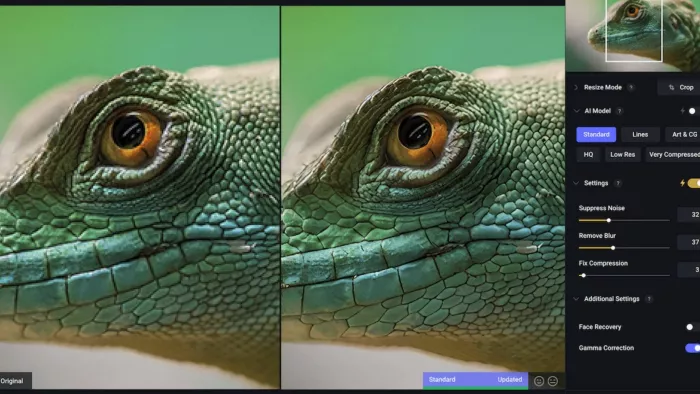
Gigapixel does one job and does it better than anything else: enlarging photographs while preserving what is actually in them. It runs locally on your GPU, offers a set of purpose-built models (Standard, High Fidelity, Low Res, Text & Shapes, Art & CG, Recover, Redefine), and enlarges up to 6× in a single pass.
Use High Fidelity when you care about accuracy and Redefine only when you want creative invention. The model choice matters more than any other setting in the app.
Limitations: needs a capable GPU (roughly 6GB+ VRAM or Apple Silicon); it is an upscaler, not a full editor; the price is high for occasional use.
Pricing: $29/month or $149/year (Personal); $499/year (Pro, for commercial volume). Topaz Photo, the broader enhancer that includes denoise and sharpen, is $39/month or $199/year. The Topaz Studio all-apps bundle is listed at $69/month month-to-month.
2. Adobe Lightroom Classic + Photoshop:
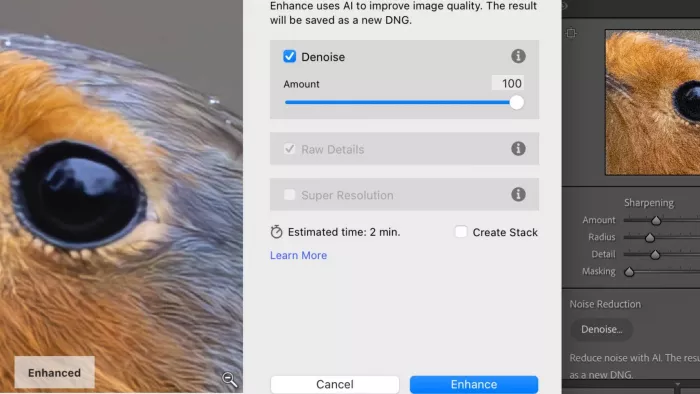
Adobe's AI tools are underrated because they are unglamorous and bundled. Enhance → Super Resolution doubles linear resolution (4× pixel count) directly from RAW. Denoise is excellent on high-ISO RAW files. Generative Remove in Photoshop handles object and blemish removal cleanly. Camera Raw's Enhance Details improves demosaicing on the original file before anything else touches it.
The advantage is pipeline integrity: everything happens in one non-destructive workflow on the original RAW, with no re-compression between steps. That alone often beats a better upscaler fed a worse input.
Limitations: Super Resolution caps at 2× linear, so it will not rescue a tiny image. Face restoration is not a dedicated feature. Adobe's own tools will likely absorb Topaz's models after the acquisition closes, but not yet.
Pricing: Photography plan (Lightroom, Lightroom Classic, Photoshop, 1TB) $19.99/month. Lightroom-only 1TB rose to $14.99/month annual-billed-monthly, $149.99/year prepaid, or $22.49 month-to-month, effective 20 March 2026. Photoshop single-app $22.99/month.
3. Upscayl:
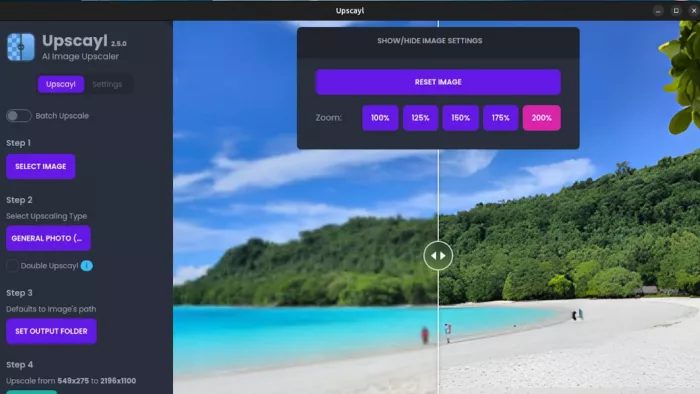
Upscayl wraps Real-ESRGAN and several community models in a clean desktop app using Vulkan GPU acceleration, running on Windows, macOS and Linux. It is MIT-licensed and has 40,000+ GitHub stars. The part that matters: nothing leaves your computer. No account, no upload, no watermark, no cap.
It ships six default models: General Photo, UltraSharp, Remacri, Ultramix Balanced, High Fidelity and Digital Art. Batch folders are supported, and chaining two passes ("Double Upscayl") reaches 16×.
Limitations: it needs a Vulkan-capable GPU: the quality gap versus Gigapixel is real and shows up on faces and fine organic texture; there is no face-restoration model and no denoise stage, so you must clean the image elsewhere first.
Pricing: desktop is free, permanently. An optional Upscayl Cloud service exists for people without suitable hardware, with tiers starting around $12/month. Third-party listings disagree on the current cloud tiers, so check the site before subscribing.
4. Magnific AI:
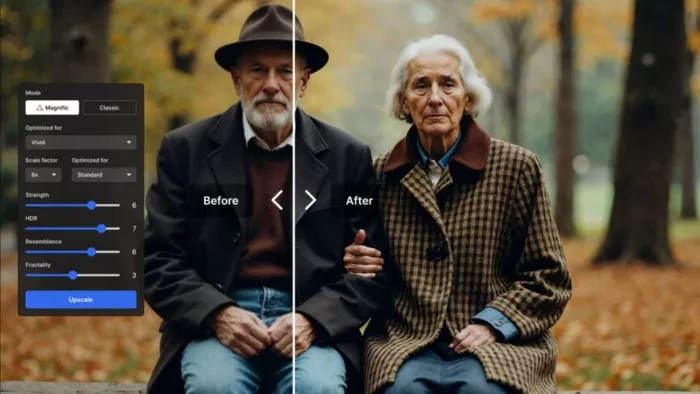
Magnific pioneered "reimagined upscaling": rather than reconstructing what was there, it generates plausible new detail guided by a creativity slider and optional prompt. On a 3D render or a Midjourney output, the results are startling. On a photograph of a real person, it will confidently invent a face.
Now part of Freepik. Treat Magnific as a generative tool that happens to increase resolution, not as a restoration tool.
Limitations: the worst possible choice for archival, documentary or evidentiary work. Also the most volatile pricing in this list.
Pricing: now credit-based following the Freepik integration. Widely-cited legacy token plans of $39/$99/$299 per month appear alongside newer credit tiers reported roughly in the $14.50–$210/month range, and users have publicly complained about credit allowances being cut mid-plan. Verify current pricing on the site before buying. This is the one entry here I would not commit to without checking.
5. Let's Enhance:
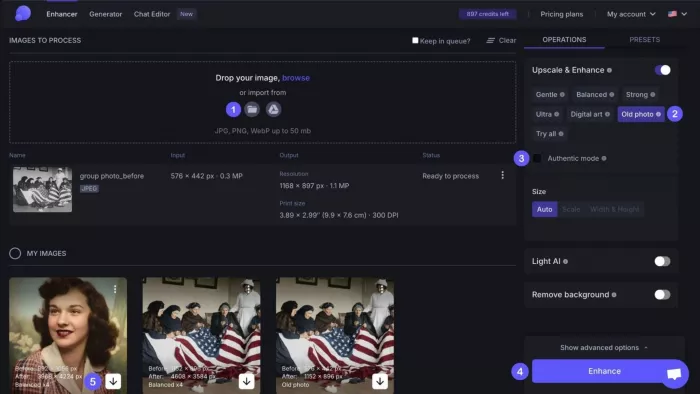
A browser tool built around getting consistent, predictable results at volume. Six super-resolution models tuned for different content types, one-click presets for e-commerce and print, background removal, and up to 16× enlargement. Credits roll over on paid plans, and 1 credit = 1 image, which makes budgeting simple.
Its "Gentle" mode is a useful fidelity option that preserves fine text and detail rather than aggressively regenerating it.
Limitations: images upload to their servers (a non-starter for confidential work); the free tier watermarks output, so it is a demo rather than a trial; per-image cost is high for occasional use.
Pricing: 10 free credits on signup. Starter $9/month annual ($12 monthly) for 100 credits; Pro around $24/month annual; Max $34/month annual ($45 monthly) for 500 credits. Pay-as-you-go credit packs around $19 and $39.
6. Krea AI:
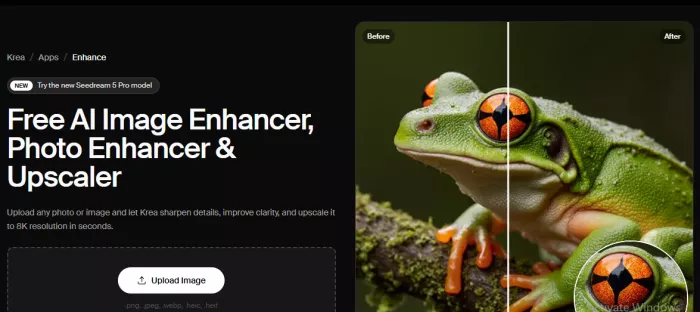
Krea is an all-in-one generative platform whose enhancer and upscaler are one feature among many. It aggregates 60+ models and reaches 22K on upper tiers. Some of its upscaling routes through Topaz models under the hood.
The free tier is unusually generous: 100 compute units per day, renewable, no card required. If you are already generating images and want enhancement in the same place, the bundling is the argument.
Limitations: long-time users have reported enhancer quality regressions after updates, including warm colour shifts and added grain. Compute units on individual plans do not roll over. Support is Discord-only.
Pricing: Free (100 units/day); Basic around $9/month ($63/year); Pro around $35/month ($252/year); Max around $105/month ($756/year); Business $200/month.
7. Remini:
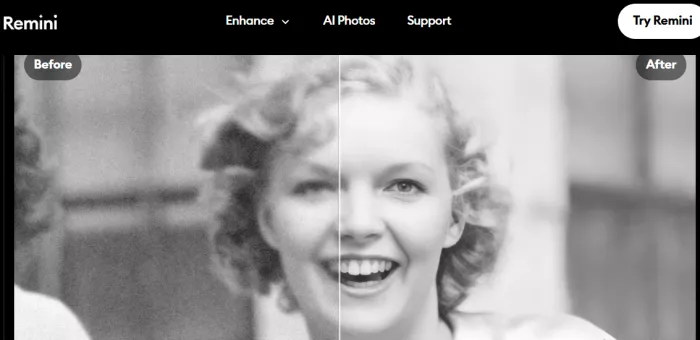
Remini is the mass-market entry point, and it earns its place for one specific job: pulling a readable face out of a degraded old print or a blurry phone snap, in one tap, on a phone.
Limitations: it is a face enhancer, not a restoration workflow. It sharpens the face while fading, scratches and background damage remain, which often makes the mismatch more obvious. Over-sharpening is common and identity drift is real. The free tier applies ads and watermarks. The weekly billing model is aggressive and cancellation complaints are widespread.
Pricing: free with ads and watermark. Web plans around $6.99/week (Personal) and $9.99/week (Business). App-store pricing varies by region, commonly around $9.99/month or roughly $50/year. Check the actual renewal price in your own app store before confirming. $6.99/week is about $360/year.
Pricing comparison:
| Tool | Free tier | Monthly | Annual | Pricing model |
| Upscayl (desktop) | Unlimited | n/a | n/a | Free, open-source |
| Krea AI | 100 units/day | ~$9 (Basic) | ~$63 | Compute units |
| Let's Enhance | 10 credits | $12 | $108 ($9/mo) | Credits, roll over |
| Adobe Photography | No | $19.99 | ~$240 | Flat subscription |
| Topaz Gigapixel | Trial | $29 | $149 | Flat subscription |
| Topaz Photo | Trial | $39 | $199 | Flat subscription |
| Remini | Ads + watermark | ~$9.99 | ~$50 (varies) | Sub / weekly |
| Magnific AI | No | Verify | Verify | Credits (restructured) |
Step-by-step: cleaning up and upscaling a photo (free, with Upscayl)
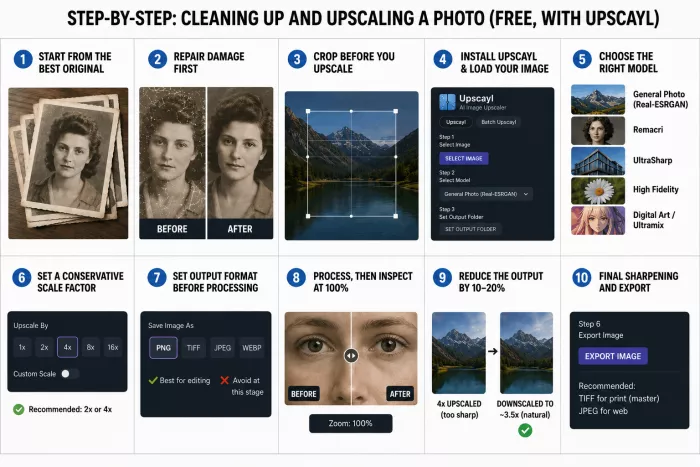
This walkthrough uses Upscayl because it costs nothing and runs on your own machine, so anyone can follow it today. The sequence is the transferable part. It applies identically in Gigapixel, Topaz Photo or Lightroom.
Step 1. Start from the best available original
Find the highest-quality source that exists. A RAW file beats a JPEG. An original camera file beats anything that has been through WhatsApp or Instagram. A fresh 600 DPI scan of a print beats a photo of that print. Every step you take before AI is worth more than every step after it.
Step 2. Repair damage at native resolution, first
Before enlarging anything, remove dust, scratches and blemishes. Then denoise. Use Lightroom, Photoshop's Generative Remove, Topaz Photo, or free options like GIMP or Photopea.
This ordering is non-negotiable. Upscaling a noisy image multiplies every noise grain into a large, structured blob the denoiser can no longer recognise as noise. Clean first.
Step 3. Crop before you upscale
Crop to your final composition now. Upscaling pixels you are about to throw away wastes processing time and, on credit-based tools, real money.
Step 4. Install Upscayl and load your image
Download from upscayl.org for Windows, macOS or Linux. You need a Vulkan-compatible GPU (most NVIDIA, AMD and Apple Silicon machines qualify). Open the app and click Select Image. For a whole folder, use Batch Upscayl.
Step 5. Choose the right model
This is the decision that determines your result:
General Photo (Real-ESRGAN): the safe default for most photographs
Remacri: balanced, often the best choice for portraits and natural texture
UltraSharp: maximum edge definition, excellent for architecture and product shots, too aggressive for skin
High Fidelity: the most conservative, for when accuracy matters most
Digital Art / Ultramix: illustration, anime, vector-style and mixed content
Do not guess. Run the same image through two or three models and compare. It takes minutes and the difference is larger than any other choice you will make.
Step 6. Set a conservative scale factor
Choose 2× or 4×. Resist the temptation to go straight to 16× via Double Upscayl. Beyond about 4×, the ratio of invented pixels to real ones passes the point where output stops resembling the input in any meaningful way. If you need more than 4×, do two separate 2× passes with a manual review in between.
Step 7. Set the output format before processing
Use PNG or TIFF for the intermediate file. Saving to JPEG here re-introduces exactly the compression artifacts you are trying to remove, and you may have more editing to do. Convert to JPEG only at the final export.
Step 8. Process, then inspect at 100%
Run the upscale. Then open the result at 100% zoom, not fit-to-screen. Fit-to-screen hides every problem AI upscaling creates. Use the built-in comparison slider and examine: eyes and teeth, hair strands, any text or numbers, and repeating textures like brick or fabric.
Step 9. Reduce the output by 10–20%
This is the professional trick almost nobody mentions. Take your 4× result and scale it down to roughly 3.2–3.6× in any editor. Downsampling averages out AI's over-confident micro-detail, and the result looks noticeably more photographic and less synthetic, while still far larger than the original.
Step 10. Final sharpening and export
Apply a small amount of output sharpening appropriate to the destination (screen needs less; print needs more). Export to your final format. For print, keep the TIFF master.
Quality control: did you actually improve it?
Run these five checks before you publish anything. If a photo fails any of them, go back a step rather than pressing on.
The 100% test. View at full pixel scale. If detail looks smeared, waxy or crystalline, the model over-reached.
The identity test. For any photo of a real person, compare faces side by side. If the person looks different rather than clearer, discard it.
The text test. Any signage, number plate, book spine or label in the frame is a truth detector. AI cannot read; it produces text-shaped shapes. If text became legible but wrong, everything else in that image is suspect too.
The repetition test. Scan brick, grass, fabric and foliage for identical repeating patches. Repetition is the signature of generative fill running out of ideas.
The A/B distance test. View original and result at normal viewing distance, side by side. If the "improvement" only shows at 400% zoom, you have not improved the photo. You have added detail nobody will ever see.
Five mistakes that cause quality loss
Upscaling before denoising. The single most common error.
Working from a re-compressed copy when the original still exists.
Saving intermediate steps as JPEG, compounding compression damage at every stage.
Using a creative upscaler on a documentary photo. That is a category error, not a settings error.
Chasing maximum zoom. 16× is a marketing number, not a workflow.
Which one should you choose?
There is no best tool. There is a best tool for your situation, and it depends on three things: what you're restoring, how many, and whether accuracy or impact matters more.
If you're rescuing family photographs, this is the most emotionally valuable and least forgiving category. Scan properly at 600 DPI. Repair damage manually and use conservative settings. Start with Upscayl free. Add Remini only for badly blurred faces, and check identity carefully. Resist creative upscalers entirely. A grandmother who looks almost like herself is worse than a soft but honest photograph.
If you're a working photographer, the answer is likely tools you already own. Lightroom Classic's Denoise and Super Resolution on RAW files cover most needs inside a clean pipeline. Add Gigapixel when you regularly print large. Watch the Adobe acquisition before committing to multiple years.
If you sell online, volume and consistency beat peak quality. Let's Enhance's presets and rolling credits fit that shape; above roughly 50 images a month, a local tool is cheaper.
If you work with AI art or 3D renders, fidelity is irrelevant and invention is the point. Magnific and Krea are built for you. Verify Magnific's current credit pricing first.
If you're privacy-conscious or on a tight budget, Upscayl alone is a complete answer for a large share of work, permanently free and fully offline.

Comments