Best Productivity Chrome Extensions for Creators, Marketers and Freelancers

Sakshi Purna

Chrome can easily become the place where work gets scattered. Research sits across twelve tabs, client emails compete with project dashboards, social posts wait to be scheduled, and a task you meant to remember disappears somewhere between Gmail and Google Docs.
The best Chrome extensions do not fix productivity by adding more software to manage. They remove a small, repetitive step from work you already do. For creators, marketers and freelancers, that difference matters because browser friction tends to arrive in dozens of tiny interruptions rather than one obvious productivity problem.
Quick Comparison
| Extension | Best For | Starting Price | Main Productivity Gain |
| Grammarly | Everyday writing | Free; Pro from $12/month billed annually | Editing directly where you write |
| Todoist | Task management | Free; Pro from $5/month billed annually | Capturing tasks without changing apps |
| Notion Web Clipper | Research | Free; Notion Plus from $10/member/month | Saving useful webpages into an organized workspace |
| Loom | Client and team communication | Free; Business from $18/user/month | Replacing long explanations with recordings |
| Clockify | Freelance time tracking | Free; Basic from $3.99/user/month billed annually | Tracking billable and non-billable work |
| OneTab | Browser organization | Free | Clearing large groups of open tabs |
| Scribe | Process documentation | Free; Pro Personal from $25/user/month billed annually | Creating visual how-to guides automatically |
| Buffer | Social media work | Free; Essentials from $5/channel/month billed annually | Turning discoveries into scheduled content |
| Similarweb | Marketing research | Free Chrome extension | Checking website and traffic signals quickly |
| Hunter | Outreach | Free; Starter from $34/month billed annually | Finding relevant business contacts while browsing |
*Note: Prices are listed in USD and reflect publicly available pricing at the time of writing. Annual rates require upfront annual billing where stated, and regional pricing or taxes may vary.
The important point is that these extensions solve different types of friction. Installing Grammarly, Todoist and OneTab together can make sense because they handle writing, tasks and tabs. Installing four tools that all rewrite sentences usually creates more decisions rather than saving time.
How I Chose These Extensions
A productivity extension deserves space in the browser only when its usefulness survives normal working conditions. A feature may look impressive in a product demo but still be inconvenient if it requires constant configuration or another dashboard to check.
For this list, the useful criteria are more practical:
● The extension should remove a repeated action rather than merely move it somewhere else. Saving three clicks every hour can matter more than an advanced feature you use twice a month.
● It should work close to where the task already happens. Browser tools are most valuable when they reduce switching between tabs, desktop apps and dashboards.
● The free version should give users enough information to understand whether the workflow suits them. A free installation that immediately becomes unusable without upgrading is difficult to recommend broadly.
● Its benefit should be easy to explain in terms of a real job. “Boosts productivity” says very little. “Turns the webpage you are reading into a Todoist task” describes an actual workflow improvement.
This also means the list is intentionally mixed. A freelancer tracking time has a different productivity problem from a marketer researching competitors or a creator organizing sources for a video.
1. Grammarly: Best for Everyday Writing

Grammarly is most useful when writing is distributed across the browser. Instead of treating proofreading as a separate stage, it surfaces writing suggestions while you work across supported websites and web editors.
| Detail | Grammarly |
| Best for | Writers, marketers and freelancers |
| Main use | Grammar, clarity and sentence improvement |
| Pricing | Free; Pro starts at $12/member/month billed annually, or $30 with monthly billing |
| Good fit for | Emails, documents, posts and browser-based copy |
Grammarly's current Pro plan costs $144 per year, which works out to $12 per member per month, while users choosing month-to-month billing pay $30 per month.
Where It Helps Most
The real productivity gain appears in small writing jobs. A freelancer may send ten client messages in a day, while a marketer might move between campaign copy, LinkedIn posts and internal documents. Running each piece through a separate editor would add unnecessary steps.
Grammarly places the editing layer closer to the work itself, which is useful when the goal is catching obvious problems before hitting send or publish.
What I Like
● It reduces separate proofreading passes for everyday communication, particularly when the writing is too important to send carelessly but too short to justify a dedicated editing session.
● The suggestions can identify clarity problems rather than stopping at spelling, which makes it more useful for rushed emails and short-form copy.
● You can reject recommendations instead of letting the tool silently rewrite everything, an important distinction when tone and terminology matter.
What Could Be Better
The biggest risk is treating every recommendation as an instruction. Automated editing can make deliberate phrasing more conventional, particularly in creative or highly specialized writing. More sophisticated rewriting and AI assistance also sit in the paid tier, so occasional users should determine whether the free version already handles most of their everyday editing needs.
Best fit: People who write frequently across several browser-based tools and want editing assistance without creating a separate proofreading workflow.
2. Todoist: Best for Capturing Tasks

A task manager becomes less useful when creating a task requires leaving the thing that created the task in the first place. Todoist's browser extension addresses that problem by putting task access directly inside Chrome.
| Detail | Todoist |
| Best for | Freelancers and multi-project workers |
| Main use | Tasks, reminders and quick capture |
| Pricing | Free; Pro starts at $5/month billed annually, or $7 with monthly billing |
| Good fit for | Client work, research follow-ups and daily planning |
Todoist Pro currently costs $60 per year, equivalent to $5 per month when billed annually. Paying month to month raises the price to $7.
Where It Helps Most
Imagine finding a report you need to reference in Thursday's newsletter. Without a capture system, you either leave the tab open, bookmark it without context or tell yourself you will remember it later.
A browser-based task manager lets you turn that moment into an action immediately. This is more useful than simply maintaining a better-looking to-do list because the extension shortens the distance between noticing work and recording it.
What I Like
● Tasks can be captured while the relevant webpage is still in front of you, reducing the chance that useful research turns into another forgotten bookmark.
● The extension suits people whose work moves between many browser applications, because the task list remains accessible without opening the full Todoist interface.
● The free plan is usable for personal organization, while Pro makes more sense once projects, reminders and planning requirements become more complex.
What Could Be Better
Todoist will not solve poor prioritization. It is very easy to convert every idea, email and webpage into another task until the task manager itself becomes an inbox that needs managing.
Use the extension for work that requires a clear next action rather than saving everything that looks vaguely useful.
Best fit: Freelancers, marketers and creators who regularly notice tasks while browsing and currently rely on open tabs or memory to remember them.
3. Notion Web Clipper: Best for Research

Notion Web Clipper solves a different problem from traditional bookmarking. It can save an entire webpage into a chosen Notion page or database, preserve its source URL and give the saved material somewhere to live alongside notes and project information.
| Detail | Notion Web Clipper |
| Best for | Creators and research-heavy marketers |
| Main use | Saving and organizing online research |
| Pricing | Web Clipper is free; Notion Plus starts at $10/member/month |
| Good fit for | Articles, references, inspiration and competitor research |
You do not need a paid standalone Web Clipper subscription. Notion itself has a $0 plan, while its first paid workspace tier, Plus, currently starts at $10 per member per month.
Where It Helps Most
A bookmark answers one question: Where was that page? A research system has to answer a harder one: Why did I save it?
That makes Web Clipper particularly useful when the destination is already organized. A content writer could maintain a database for statistics and research. A YouTube creator could collect source material by upcoming video. A marketer could build separate databases for competitors, landing-page examples and campaign inspiration.
What I Like
● Saved pages can go directly into an existing project or database, which prevents research from becoming one enormous undifferentiated bookmark folder.
● The original URL is retained automatically when pages are clipped into databases, making it easier to return to sources later.
● The tool is deliberately simple, so capturing material does not become a lengthy classification exercise every time you find something useful.
What Could Be Better
Webpages are built differently, so clipped formatting can vary and some page content may not be captured perfectly. Notion also does not currently let users assign all database properties during the initial clipping process, meaning some organization may still happen afterward.
That limitation matters because saving information is only half of research productivity. A giant Notion database full of unread clips can become another version of tab clutter.
Best fit: People who already organize projects in Notion and want web research to enter that system with less copying and pasting.
4. Loom: Best for Explaining Work

Some communication problems are difficult to solve with another email. Loom's Chrome extension lets users record their browser screen, camera and audio, then share the recording through a generated link.
| Detail | Loom |
| Best for | Freelancers, consultants and remote teams |
| Main use | Screen recording and asynchronous explanations |
| Pricing | Free; Business starts at $18/user/month |
| Good fit for | Feedback, walkthroughs, demos and client updates |
Loom's Starter plan costs $0. Its first paid tier, Business, currently starts at $18 per user per month, while the Business + AI tier is priced higher.
Where It Helps Most
Suppose a freelance designer needs to explain five changes to a landing page. Writing a detailed email requires describing where every element is located. A two-minute screen recording can show the page, point at the problem and demonstrate the intended change.
The productivity gain comes from matching the communication format to the problem. Loom is not faster than writing when the message is “approved.” It can be dramatically faster when the explanation depends on something visible on screen.
What I Like
● Recordings create visual context that text often struggles to provide, especially for software, design, analytics and website-related work.
● Sharing is quick because a link is generated after recording, reducing the usual record-export-upload process.
● Comments and reactions make recordings useful for asynchronous collaboration, particularly when people work across different schedules.
What Could Be Better
The free Starter plan limits the number and length of normal screen recordings, so people using Loom heavily for client communication may eventually need Business.
Video can also become a productivity problem when people record everything. A six-minute Loom should not replace a six-word message. Use it when seeing the screen genuinely reduces explanation time.
Best fit: Freelancers and teams who frequently need to demonstrate, review or explain visual work.
5. Clockify: Best for Freelance Time Tracking

Time tracking sounds administrative until you need to answer a basic business question: Where did the working day actually go? Clockify's Chrome extension puts a timer inside the browser and allows users to start tracking work without repeatedly returning to the main application.
| Detail | Clockify |
| Best for | Freelancers, agencies and consultants |
| Main use | Time tracking and project records |
| Pricing | Free; Basic starts at $3.99/user/month billed annually, or $4.99 monthly |
| Good fit for | Hourly projects, retainers and workload reviews |
Clockify offers a free time-tracking tier. Its Basic plan currently begins at $3.99 per seat per month with annual billing, while month-to-month billing costs $4.99 per seat.
Where It Helps Most
For hourly freelancers, the obvious benefit is billable-time records. The less obvious benefit is understanding non-billable work.
If a “five-hour project” repeatedly requires two additional hours of client communication, revisions and admin, time tracking reveals that your pricing assumptions are wrong. That turns Clockify from a timer into a decision tool.
What I Like
● The timer is available close to browser-based work, reducing the friction that causes people to forget to start or stop tracking.
● Tracked time can be associated with projects and activities, making the data more useful than a simple stopwatch.
● The free tier already covers core time tracking, which means individual freelancers can learn whether detailed tracking improves their work before paying.
What Could Be Better
Manual tracking still depends on behavior. If you constantly forget to switch timers between projects, the resulting reports can create false precision rather than useful information.
Tracking every minute can also become counterproductive for people who do not need detailed billing records. The goal should be better decisions, not producing a perfectly documented history of every browser session.
Best fit: Freelancers who bill by time or need better evidence about how long clients, tasks and projects actually consume.
6. OneTab: Best for Tab Overload

Open tabs are often treated as a productivity system: one tab means “read this,” another means “reply to this,” and another means “I might need this later.” OneTab converts tabs in a browser window into a saved list that can be restored individually or together.
| Detail | OneTab |
| Best for | Heavy researchers and multitaskers |
| Main use | Tab organization |
| Pricing | Free |
| Good fit for | Research sessions, project switching and browser cleanup |
There is no paid subscription required for the normal OneTab workflow, making its starting cost effectively $0.
Where It Helps Most
The extension is particularly useful at transition points. You may have 18 tabs open while researching an article but need to switch to client work without losing the research session. OneTab lets you collapse that group rather than keeping every page active indefinitely.
Its main purpose is simple: move open tabs into a recoverable list so they are no longer all consuming active browser resources at once.
What I Like
● It treats groups of tabs as temporary working sets rather than permanent browser furniture, which is more practical than manually bookmarking twenty pages.
● Tabs can be restored selectively, so reopening a research session does not require loading everything again.
● There is no account required for the normal workflow, keeping setup unusually lightweight.
What Could Be Better
OneTab reduces visible clutter, but it does not decide what is important. Moving 200 forgotten tabs into a saved list simply creates a tidier form of procrastination.
Use it for active project sessions and periodically delete groups you no longer need.
Best fit: Anyone whose browser regularly becomes a holding area for unfinished research and half-completed tasks.
7. Scribe: Best for Process Documentation
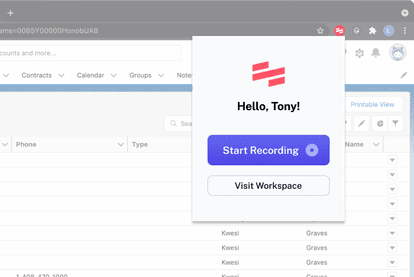
Explaining the same procedure repeatedly is one of those small tasks that becomes expensive at scale. Scribe's Chrome extension records a browser-based process and turns it into a step-by-step guide with screenshots.
| Detail | Scribe |
| Best for | Freelancers, agencies and operations teams |
| Main use | Automatic process documentation |
| Pricing | Free; Pro Personal starts at $25/user/month billed annually, or $35 monthly |
| Good fit for | SOPs, handoffs, tutorials and client instructions |
Scribe has a free Basic tier. For individual professionals, Pro Personal currently costs $25 per seat per month with annual billing or $35 per seat on monthly billing.
Where It Helps Most
Consider a marketer who needs to show a client how to update campaign assets inside a dashboard. Without Scribe, creating instructions means taking screenshots, cropping them, numbering steps and writing explanations manually.
A capture-based documentation tool changes the economics of creating those guides. Documentation becomes something you can produce while completing the process instead of a separate project scheduled for later.
What I Like
● The guide is generated from the process you perform, reducing the repetitive screenshot-and-caption work behind basic SOPs.
● It is useful outside internal teams, particularly for freelancers who repeatedly explain website, CMS or analytics tasks to clients.
● Pro adds desktop capture, screenshot editing and export functionality, which becomes more valuable when documentation is part of recurring client work.
What Could Be Better
Automatically generated documentation still needs reviewing. A captured workflow can contain unnecessary clicks, accidental information or steps that make sense to the creator but not the reader.
The extension saves the mechanical work of creating the guide. It does not remove the need to make the instructions understandable.
Best fit: Anyone who regularly answers some version of “Can you show me how to do this?”
8. Buffer: Best for Social Content Capture
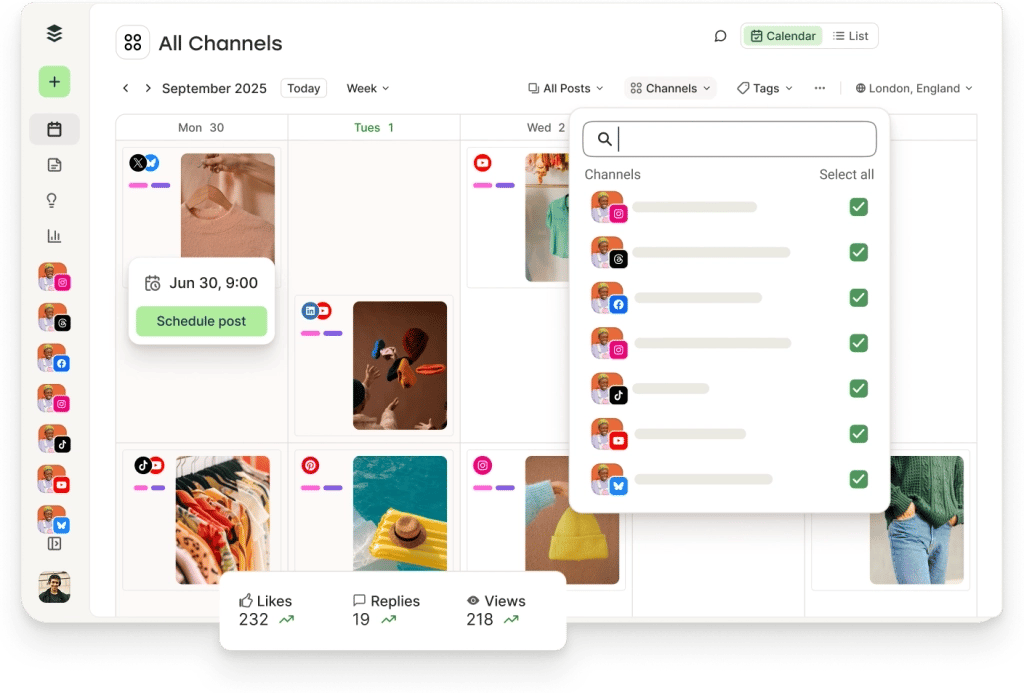
Social media productivity is often framed around publishing faster, but collecting material is another bottleneck. Buffer's browser extension lets users turn webpages, images or snippets encountered while browsing into content without returning to the main Buffer dashboard.
| Detail | Buffer |
| Best for | Creators and social media marketers |
| Main use | Saving and scheduling social content |
| Pricing | Free; Essentials starts at $5/channel/month billed annually, or $6/channel monthly |
| Good fit for | Content curation, idea capture and scheduling |
Buffer's free plan supports a limited number of channels and scheduled posts. Essentials currently starts at $5 per channel per month when billed annually, equivalent to $60 per year for one channel, while monthly billing starts at $6 per channel.
Where It Helps Most
Suppose you are researching an industry topic and find a report worth discussing on LinkedIn next week. The inefficient workflow is to copy the link somewhere, write a reminder and return later to create the post.
Buffer allows the discovery itself to become the starting point for the social post. You can either prepare it for scheduling or save it as an idea for development later.
What I Like
● It shortens the gap between discovering useful material and putting it into the content pipeline, which is particularly helpful for curated or commentary-based social accounts.
● Ideas do not have to be publish-ready when captured, so research can feed the content calendar without forcing immediate writing.
● The free plan is substantial enough for smaller accounts to establish a real scheduling workflow before deciding whether unlimited scheduling and advanced features justify paying.
What Could Be Better
Convenient scheduling can encourage unnecessary posting. The extension is most useful when a content strategy already exists and you know why a piece of material belongs in the queue.
Buffer's per-channel pricing also means costs rise as more profiles are connected. A solo creator running one or two important accounts may find it inexpensive, while agencies managing many channels should calculate the full account cost rather than focusing on the $5 starting figure.
Best fit: Creators and marketers who frequently discover post-worthy material while researching or browsing.
9. Similarweb: Best for Quick Competitor Research
Marketing research often becomes slow because every small question opens another analytics platform. Similarweb's browser extension brings website-level signals into the current browsing session, including traffic, keywords, rankings, traffic sources and newer visibility information related to AI referrals.
| Detail | Similarweb |
| Best for | SEO, content and growth marketers |
| Main use | Website and competitor research |
| Pricing | Chrome extension is free |
| Good fit for | Competitor checks, prospect research and market scanning |
Similarweb explicitly offers its browser extension free to install and use without requiring a paid Similarweb account. Its broader intelligence products use separate pricing structures, so readers who only need quick browser-level checks can start at $0.
Where It Helps Most
The extension is valuable during the early stage of research, when you need orientation rather than a full report.
A content marketer reviewing ten competing websites can quickly identify which sites deserve deeper investigation instead of manually running every domain through a separate analytics workflow. A freelancer evaluating a potential client can also get basic context before a discovery call.
What I Like
● Website information appears without requiring constant dashboard switching, which is exactly the kind of minor interruption a browser extension should remove.
● It is useful for triage, helping marketers decide where deeper research is worth the time.
● The extension now includes signals around AI-referral traffic alongside familiar traffic and keyword information, which makes it more relevant as discovery spreads beyond traditional search.
What Could Be Better
Estimated third-party traffic data should not be treated as the equivalent of a company's first-party analytics. It is better for comparison, direction and research hypotheses than for making precise claims about another company's performance.
That distinction is especially important on smaller websites, where limited traffic data may result in incomplete information. Similarweb itself notes that smaller domains can return partial data.
Best fit: Marketers who frequently research competitors, industries and potential clients but do not need a full analytics report every time they open a domain.
10. Hunter: Best for Faster Outreach Research
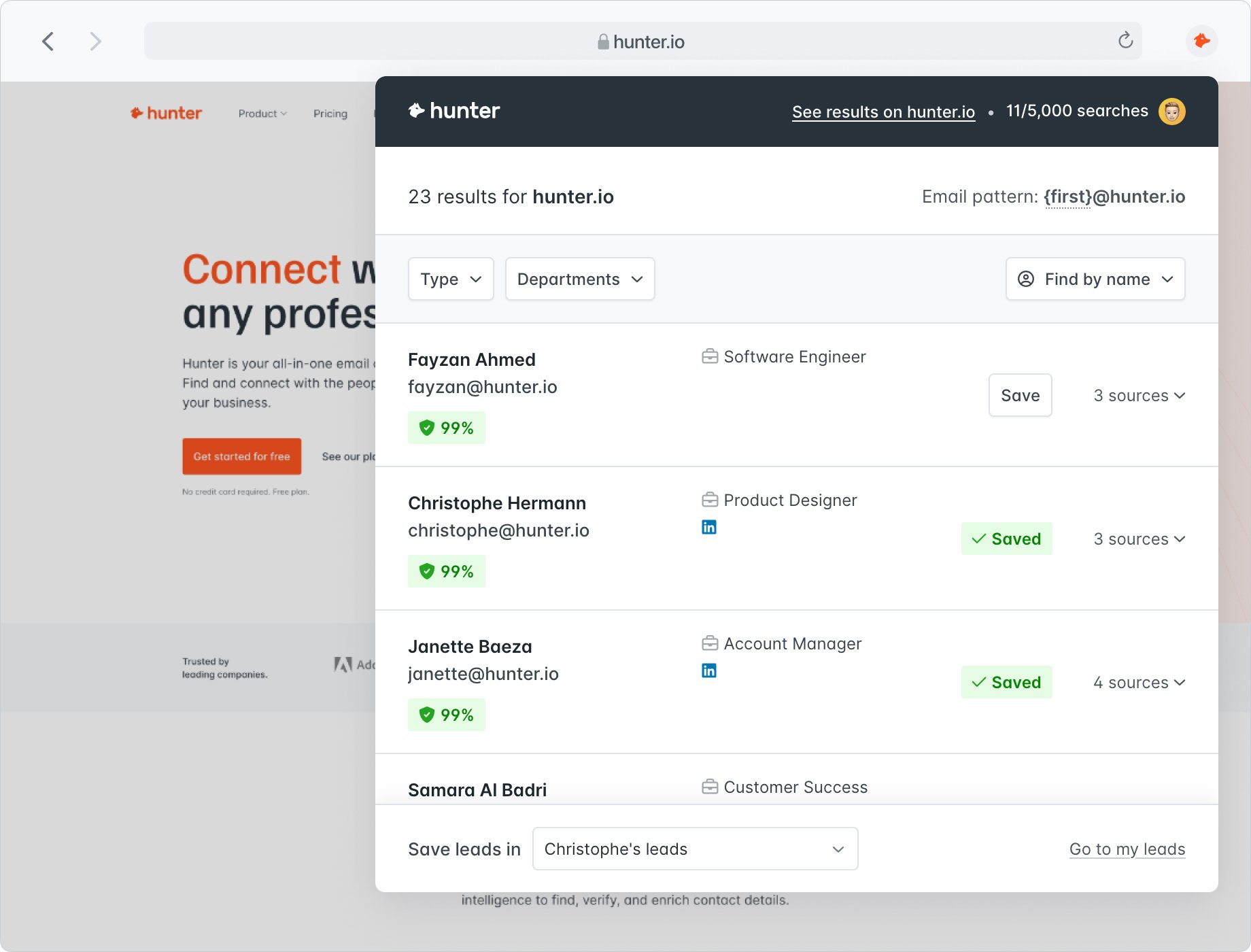
Outreach can become surprisingly manual when researching companies one website at a time. Hunter's Chrome extension retrieves professional contact information associated with the domain being visited, making it easier to move from company research to identifying an appropriate contact.
| Detail | Hunter |
| Best for | Freelancers, marketers and sales outreach |
| Main use | Finding professional contact information |
| Pricing | Free; Starter starts at $34/month billed annually |
| Good fit for | Prospecting, partnerships and PR outreach |
Hunter has a permanent free tier with 50 credits per month. Its Starter plan currently begins at $34 per month when purchased on annual billing, with 24,000 credits provided across the year.
Where It Helps Most
Imagine a freelance consultant building a list of 30 potential clients. The slow version involves visiting each website, searching its contact pages, checking LinkedIn and manually determining who may be responsible for the relevant function.
Hunter removes part of that research loop by making domain-related professional contact information available from the website itself. This is particularly useful when prospecting is research-led rather than based on buying a large pre-built contact database.
What I Like
● It brings prospect research closer to the website being evaluated, reducing repeated copying of domains into another tool.
● Contacts can be narrowed by role or department, which is more useful than receiving a random list of addresses.
● The free tier provides enough credits for occasional prospect research, while the paid tiers are structured for people doing outreach much more frequently.
What Could Be Better
Finding an email address does not mean the person is an appropriate prospect. Good outreach still requires understanding the company, choosing the correct contact and writing something relevant.
Hunter also uses a credit-based pricing model, so the advertised starting subscription should not be viewed as unlimited prospecting. People conducting high-volume searches need to consider the included credit allowance as carefully as the monthly price.
The extension should reduce research time, not turn outreach into indiscriminate volume.
Best fit: Freelancers and marketers who regularly research partnerships, leads, publications or potential clients.
Which Extensions Fit Each Role?
There is no reason for a creator, marketer and freelancer to run exactly the same browser setup. Their biggest productivity losses happen in different parts of the working day.
| Role | Strong Starting Stack | Why |
| Creator | Grammarly + Notion Web Clipper + Buffer + OneTab | Covers writing, research, publishing and tab-heavy creative work |
| Marketer | Todoist + Similarweb + Buffer + Hunter | Connects research, outreach, social work and follow-up tasks |
| Freelancer | Todoist + Clockify + Loom + Scribe | Helps manage tasks, billable work, client explanations and handoffs |
| Research-heavy writer | Notion Web Clipper + OneTab + Grammarly | Keeps sources organized while reducing editing and tab clutter |
These combinations are starting points rather than bundles to install blindly. Someone who never bills hourly gains little from Clockify, while a freelance social media manager may get far more value from Buffer than Scribe.
Build a Stack, Not a Collection
There is an awkward truth about productivity software: every productivity tool creates a small amount of management work of its own.
An extension may need an account, settings, notifications, updates and occasional cleanup. Install enough of them and the browser becomes another workspace requiring maintenance.
A better approach is to build around friction points.
Start by asking where work repeatedly slows down:
● If useful research disappears after you find it, solve capture and organization before adding another writing tool.
● If you constantly forget small follow-up jobs, task capture is likely more valuable than a sophisticated project dashboard.
● If client explanations consume large parts of the week, Loom or Scribe may save more time than another AI writing assistant.
● If your browser regularly contains 40 open tabs, fixing tab management may produce a more noticeable improvement than adding another automation extension.
The goal is not to create the most advanced Chrome toolbar. It is to make the toolbar contain fewer tools with clearer jobs.
The Hidden Cost of Extensions
Extensions feel lightweight because they live behind small toolbar icons, but they still become part of the browser environment. Too many can create overlapping shortcuts, notifications and permissions while making it harder to remember which tool handles what.
There is also a security and privacy consideration. Extensions can require access to webpages, text, browser activity or other information depending on what they are designed to do. A permission request does not automatically mean an extension is unsafe, but users should understand why that access is necessary before approving it.
Before keeping an extension permanently installed, check:
● Whether the access it requests makes sense for its core function. A writing assistant needs different access from a simple tab organizer, so permissions should be judged in context rather than by quantity alone.
● Whether you trust the developer and understand how the extension handles data. This matters much more when the extension can encounter client documents, private dashboards or sensitive communication.
● Whether the extension is still actively maintained. Browser APIs and product integrations change, making an abandoned productivity tool a poor long-term dependency.
● Whether you can limit site access without breaking the functionality you actually use. Giving an extension access everywhere should not be the automatic choice when narrower permissions work.
This is particularly important for freelancers handling material that belongs to clients rather than themselves.
Free vs Paid Extensions
Paying for an extension makes sense when the limitation you are removing has a clear economic cost.
A freelancer who sends two Loom recordings per month probably does not need unlimited recording. Someone creating client walkthroughs every day might. Likewise, the free version of a writing extension may be sufficient for occasional emails, while a professional writer may get more value from deeper editing features.
The useful calculation is not simply subscription price. Ask:
How frequently do I hit the free limitation, and what does working around it cost me?
Consider Clockify as a simple example. Its first paid tier starts at $3.99 per user per month with annual billing. If better tracking helps a freelancer identify even one regularly underpriced task, the subscription can be easy to justify.
Scribe is different. Pro Personal starts at $25 per month with annual billing, so someone creating one guide every few months has a much weaker reason to pay than a consultant who produces client documentation every week.
This is why buying productivity software before establishing the workflow usually gets the order backwards. Use the free version until you can identify the limitation you are actually paying to remove.
Do Not Compare Starting Prices Alone
The lowest advertised price can also be misleading because these extensions use very different billing models.
Buffer prices its paid plans primarily by social channel. Clockify charges paid users by seat. Hunter revolves heavily around credit allowances. Todoist charges per user, while OneTab does not require a subscription at all.
That means "$5 per month" does not describe the same thing across every extension.
For example, a solo creator paying Buffer's annual Essentials rate for one social channel has a very different total cost from an agency connecting ten client accounts. Likewise, Hunter's $34 starting annual rate should be considered alongside the number of credits required by your outreach volume.
Before subscribing, check three numbers rather than one:
● Look at the actual annual commitment behind the advertised monthly rate, because a $5 “monthly” price may require paying an entire year upfront.
● Check what makes the price increase, whether that is users, channels, credits, storage, projects or usage limits.
● Compare the paid feature you need with the free-plan limitation, rather than assuming the premium plan is automatically more productive.
This is particularly useful for freelancers and small teams because software costs rarely come from one expensive tool. They accumulate through ten inexpensive subscriptions.
A Simple Extension Audit
Every few months, open Chrome's extension manager and look at what is installed. You will probably find tools you once considered essential but have not used recently.
For each extension, ask whether it passes three tests:
1. Do I use it regularly? An extension installed for one unusual project does not need permanent browser access.
2. Does it remove meaningful work? Convenience is useful, but a tool that saves one click once a week has little claim on your browser.
3. Would I notice if I removed it tomorrow? This is often the clearest test. If the answer is no, uninstalling it makes the browser simpler without changing the workflow.
You can always reinstall an extension later. Treating installation as reversible makes it easier to keep the browser intentionally small.
Verdict
The best productivity Chrome extension depends less on how many features it offers and more on where your work repeatedly breaks momentum.
For everyday writing, Grammarly remains useful because editing happens directly where the writing occurs. Todoist is stronger when browser activity constantly creates new tasks, while Notion Web Clipper is better for people whose research needs somewhere organized to go. Loom and Scribe solve different communication problems, Clockify gives freelancers a clearer picture of where their hours disappear, and OneTab addresses the surprisingly expensive habit of using open tabs as a memory system.
For marketers, Buffer, Similarweb and Hunter stand out because each removes a repetitive part of publishing, research or outreach rather than trying to replace the entire marketing workflow.
Pricing also changes the recommendation. Some of the most useful extensions here, including OneTab and Similarweb's browser extension, can be used for $0. Others make more sense only when the browser task is frequent enough to justify paying $5, $12, $25 or more each month.
The strongest setup is usually not ten extensions. It is three or four that solve different problems and become almost invisible during normal work. If an extension requires you to think about the extension more often than the task it is supposed to simplify, it probably is not improving productivity.


Comments