
An Instagram bio link that stops working can mean missed website visits, abandoned purchases, and lost bookings. Sometimes the link disappears from a profile. Other times, it opens a blank page or leads to a website that refuses to load.
The problem isn't always Instagram itself. Incorrect URLs, browser restrictions, expired pages, and broken link-in-bio buttons can produce similar results. Finding where the link fails is the quickest way to fix it without repeatedly changing profile settings.
Why Instagram Bio Links Fail
An Instagram bio link connects several systems. A visitor taps the link on Instagram, the platform opens a browser, and that browser requests the destination website. If a link-in-bio page is involved, the visitor must make another click to reach the final destination.
A failure at any point can interrupt that process. The most common causes fall into four categories:
● Instagram profile settings: The URL was entered in the regular bio text, changes were not saved, or the intended link is missing from the profile.
● Incorrect web addresses: A mistyped URL, deleted page, or outdated domain sends visitors to an unavailable destination.
● Browser and security restrictions: Instagram's in-app browser may behave differently from a regular browser, while suspicious websites can trigger security warnings.
● External platform issues: A Linktree, Beacons, or Stan Store page may open normally even when individual buttons, product pages, or checkout links fail.
The important distinction is whether Instagram cannot open the link or the destination cannot deliver the expected page. These problems require different fixes.
Identify the Link Problem
Before editing anything, open the Instagram profile and tap the link exactly as a visitor would. Observe what happens after the tap, including error messages and whether the address changes.
| Problem | Possible cause | What to try first |
| Bio URL isn't clickable | URL placed in regular bio text | Add it through the Links section |
| Link doesn't appear | Changes not saved or link hidden in list | Check Edit profile |
| Blank white screen | Browser or website loading issue | Open in another browser |
| "Link not allowed" warning | URL flagged by Instagram | Review the destination |
| Page shows 404 error | Removed page or incorrect path | Replace the URL |
| Bio page loads, buttons fail | Broken external destinations | Test each button |
| Store opens, checkout fails | Store or payment issue | Test the purchase process |
A useful diagnostic technique is to copy the exact URL from Instagram's link settings and paste it into Chrome or Safari.
If it fails in both places, investigate the website or URL first. If it works outside Instagram but not inside the app, focus on browser compatibility, redirects, and Instagram-specific restrictions.
Add Links Correctly
One common mistake is typing a website address directly into Instagram's regular biography field. Instagram displays this as text rather than a clickable website link.
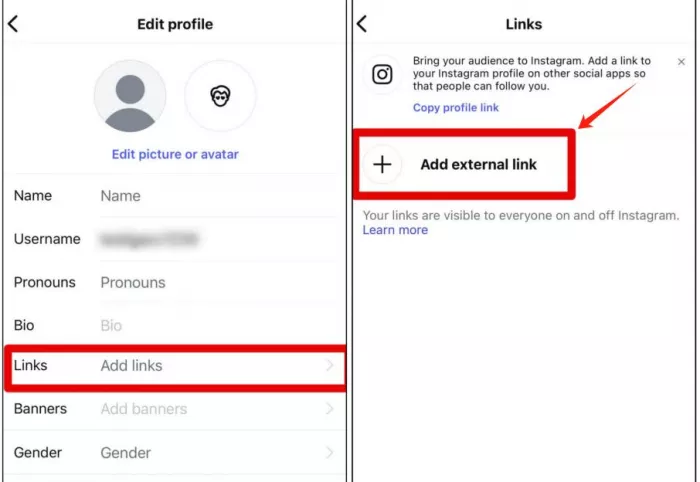
To add an external link correctly:
1. Open Instagram and visit the profile.
2. Select Edit profile and open Links.
3. Tap Add external link.
4. Paste the complete website address, preferably beginning with https://.
5. Enter a descriptive title where supported, and save the changes.
6. Return to the public profile and test the link.
Instagram currently supports up to five external profile links, managed through the mobile app. The feature is available to personal and professional accounts.
Check the complete address before saving. For example, https://example.com/shop and https://example.com can lead to different pages. A missing path might send customers to a homepage instead of the product or booking page they expected.
Fix Missing Bio Links
A missing link does not necessarily mean Instagram deleted it. With multiple external links, Instagram generally shows the first destination alongside an indicator for additional links. Visitors must tap to view the complete list.
Check the Links section to confirm that the destination still exists and appears in the correct order. If you need to add a link to your Instagram bio again, make sure the new URL is saved correctly. Instagram allows users to rearrange their external profile links, making the first position especially valuable.
If a recently added link has disappeared, reopen the settings and confirm whether the address was saved. Update the Instagram app if the interface behaves unexpectedly, then restart it and check again.
Avoid repeatedly adding the same URL before confirming whether the original change was saved. Duplicate destinations make the profile harder to manage without resolving the underlying problem.
For a business profile, the first link should usually lead to the current primary destination, such as a storefront, booking page, or link-in-bio landing page.
Check Blocked URLs
Instagram may prevent certain links from being added or display a security warning when users try to open them. These warnings can involve suspected spam, deceptive redirects, malicious content, or other safety concerns.
However, not every security warning comes from Instagram. A browser may separately flag an expired security certificate or an unsafe website.
Start by checking where the warning appears and whether it identifies the problem.
Review the URL for unexpected redirects, unfamiliar domains, or unnecessary tracking parameters. If the website belongs to the account owner, check its security certificate and confirm it has not been compromised.
A legitimate website that appears incorrectly flagged can be reported through Instagram's available reporting or support options. Avoid attempting to bypass a security restriction by disguising the same destination behind multiple shortened URLs.
If the link points to a third-party service, contact that provider when the warning concerns its domain. Changing an Instagram profile setting cannot repair a security problem on an external website.
Fix Browser Issues
Instagram normally opens external destinations through an in-app browser. Some websites behave differently in this environment, particularly those that depend on external authentication, multiple redirects, or certain browser features.
For example, a booking website might open successfully in Chrome but fail when visitors attempt to sign in through Instagram's browser. In such cases, Instagram webview optimization can help identify browser-specific compatibility issues before changing the destination link.
Try the following checks:
● Open the destination externally. Use the browser's available option to open the page in Chrome or Safari. If it works there, the issue may be specific to the in-app browser.
● Update Instagram. An outdated app may contain browser-related bugs that have already been corrected in a later version.
● Change the network connection. Test mobile data and Wi-Fi separately to identify possible connection or filtering issues.
● Check redirects. A URL that passes through several tracking or forwarding services may fail before reaching its final destination.
Android users can also try clearing Instagram's app cache through device settings. On iPhone, restarting or reinstalling the app may help with persistent local problems, provided account access is available.
If the problem affects only one website, investigate that site's mobile compatibility before assuming Instagram is responsible.
Check Your Link-in-Bio Page
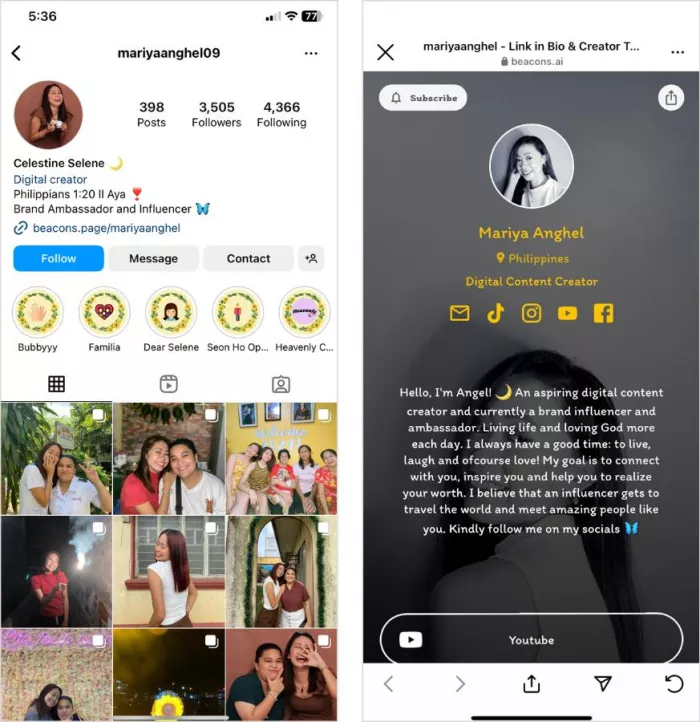
For creators using Linktree, Beacons, Stan Store, tieup.io or a similar platform, there are two levels to check: the main bio page and the individual destinations connected to its buttons.
A landing page might load successfully while its "Shop Products" button leads to a deleted listing. To visitors, the overall experience still feels broken.
Start by opening the published bio page without signing into its editor. Compare the live version with the settings dashboard and look for unpublished changes, disabled links, incomplete URLs, or access restrictions.
Linktree, for example, identifies missing link titles, incomplete URLs, and browser problems among the reasons a link might not display properly.
Custom domains need separate attention. If a branded bio URL stops working after a domain change, check its registration, DNS configuration, and HTTPS certificate.
A useful practice is to keep a record of the main landing-page address and its connected destination URLs. When one link fails, the exact affected address can be identified without rebuilding the entire page.
Fix Store and Payment Links
A creator storefront presents another potential problem: the page opens, but visitors cannot complete the action that brought them there.
Consider a creator advertising a digital template through Instagram. The bio page loads and its purchase button opens the store, but the product was unpublished after an earlier campaign. The Instagram link is technically working, yet visitors cannot buy the product.
For storefronts and booking pages, check these areas:
| Destination | What can fail | What to verify |
| Digital product | Listing unpublished | Product visibility |
| Booking calendar | No available slots | Scheduling settings |
| Online checkout | Payment error | Payment integration |
| Newsletter form | Form stops submitting | Form connection |
| Affiliate product | Product removed | Destination availability |
Payment problems deserve careful testing. A checkout may fail because of unsupported payment methods, country restrictions, expired sessions, or provider-side errors.
Use a payment provider's test mode where available. Otherwise, check the checkout flow without making unnecessary live purchases.
The goal is to confirm that visitors can complete the intended action, not simply reach a working web page.
Test Every Bio Link
Once the apparent problem has been corrected, test the complete visitor journey. Checking a link while signed into the service dashboard can hide issues affecting ordinary visitors.
A practical verification routine includes:
● View the profile externally. Open the Instagram account from another account to confirm the intended link is visible and accessible.
● Test the first destination. Follow the link from Instagram and check whether the correct landing page opens.
● Open every important button. Confirm that product, booking, contact, and download links lead to the expected destination.
● Check mobile usability. Make sure buttons remain visible, pages fit smaller screens, and essential forms can be completed.
● Verify the final action. Confirm that forms submit, booking flows reach confirmation, or product pages proceed to a functioning checkout.
Record any failing URL and the device or browser involved. This makes troubleshooting easier if the issue must be reported to Instagram, a hosting provider, or a link-in-bio service.
Prevent Future Link Errors
Bio links often become unreliable after routine website changes rather than an Instagram update.
A business might redesign its website and remove old product paths while leaving Instagram connected to those addresses. Similarly, a creator might replace a booking platform but forget to update the corresponding landing-page button.
Permanent URLs and redirects help reduce these problems. When moving a page, configure an appropriate permanent redirect to its replacement rather than leaving visitors with a 404 error.
A monthly link check is reasonable for a relatively static profile. Accounts regularly promoting new products, events, or limited-time campaigns should check the affected links after every significant update.
Analytics or website-monitoring tools can help detect sudden traffic changes or downtime. However, low click numbers alone do not prove that a link has failed. Changes in reach, content performance, and audience interest can produce similar patterns.
Improve Link Performance
A bio link can work perfectly and still fail to attract meaningful visits. This is a usability problem rather than a technical one, and it matters particularly for businesses relying on Instagram to generate enquiries or sales.
The destination should match the promise made in the Instagram content. If a Reel promotes a specific product, sending viewers to a generic homepage creates unnecessary searching.
Button wording also affects clarity. "Book a Free Consultation" communicates an action more clearly than "Click Here," while "Download the Price List" tells visitors exactly what happens next.
On a link-in-bio page, prioritize the most relevant buttons instead of giving every destination equal prominence. A creator promoting one new course might place its registration button above older resources and social profiles.
Where analytics are available, compare clicks with completed actions. A highly clicked button with few successful bookings or purchases may indicate a problem further along the journey, rather than with the button itself.
Choose the Right Link Setup
Instagram's built-in multiple-link feature is sufficient for many accounts. A freelancer sharing a portfolio, contact page, and booking form may not need a separate landing-page service.
A dedicated link-in-bio platform becomes more useful when destinations change frequently or the account needs a more organized visitor experience.
| Link setup | Best suited for | Main consideration |
| Instagram native links | A few permanent destinations | Limited presentation options |
| Link-in-bio page | Creators managing multiple resources | Extra page to maintain |
| Creator storefront | Selling products and services | Checkout and product availability |
| Custom website | Businesses needing full control | Hosting and technical upkeep |
Platforms such as Linktree, Beacons, and Stan Store can organize destinations into a single profile link. Some also provide analytics, commerce features, or additional customization.
However, adding a landing page also introduces another point that requires maintenance. A simpler setup with three reliable destinations may be more useful than an elaborate page containing numerous outdated links. The right choice depends on what visitors need to accomplish after leaving Instagram.
Verdict: Keep Every Link Working
An Instagram bio link problem should be diagnosed from the profile outward. First, confirm that the URL is correctly added and visible. Then test whether the destination opens in a regular browser. If a link-in-bio page is involved, check its buttons and the final actions they support.
For personal profiles, correcting the URL or app settings may be enough. For creators and businesses, the responsibility extends to product pages, booking systems, and checkout processes.
A functioning link is more than a clickable address. It should take visitors to the promised destination and allow them to complete the action they came for. Regular testing and clear link organization help keep that experience reliable.


Comments